Getting Started on Windows with Docker
Prerequisites
Docker must be installed on your Windows environment.
This document was tested on a PC with Docker Desktop installed.
The configuration below uses HTTP. Direct exposure of the service to external networks is not recommended.
The commands below are written for PowerShell.
Getting Started
1. Choose folders
Decide and create the folder for Docker configuration files and the folder for data storage.
This document uses the paths below.
C:\namoo-bookself
C:\namoo-bookself\data
2. Create folders and set permissions
Create the folders used by namoo-bookself under C:\namoo-bookself\data.
C:\namoo-bookself\data
├── postgres/
├── Files/
├── Log/
├── License/
└── UserConfig/
$DATA = "C:\namoo-bookself\data"
New-Item -ItemType Directory -Force -Path `
  "$DATA\postgres", "$DATA\Files", "$DATA\Log", "$DATA\License", "$DATA\UserConfig"
3. Create docker-compose.yml
Create a docker-compose.yml file in C:\namoo-bookself.
Copy the content from the docker-compose.yml document.
You may change the restart option as needed.
4. Create .env file
Create a .env file with values mapped to the docker-compose.yml file above.
Copy the content from the .env document and modify it.
5. Register service port in firewall
If you use a firewall, allow the service port.
Use the SERVER_HTTP_PORT value from the env file when opening the firewall.
6. Pre-launch checklist
- The folder structure before launch should look like this:
C:\namoo-bookself
├── docker-compose.yml
├── .env
C:\namoo-bookself\data
├── postgres/
├── Files/
├── Log/
├── License/
└── UserConfig/
- Check whether a firewall is configured and, if so, whether the configured port is open.
7. Launch
Go to the folder containing docker-compose.yml and run the commands below.
# Pull images
docker compose pull

# Start containers
docker compose up -d

# Check status
docker compose ps
docker compose logs -f app
8. Check launch logs
If the logs show no errors other than license Error logs and include a Start server log, the service started successfully.
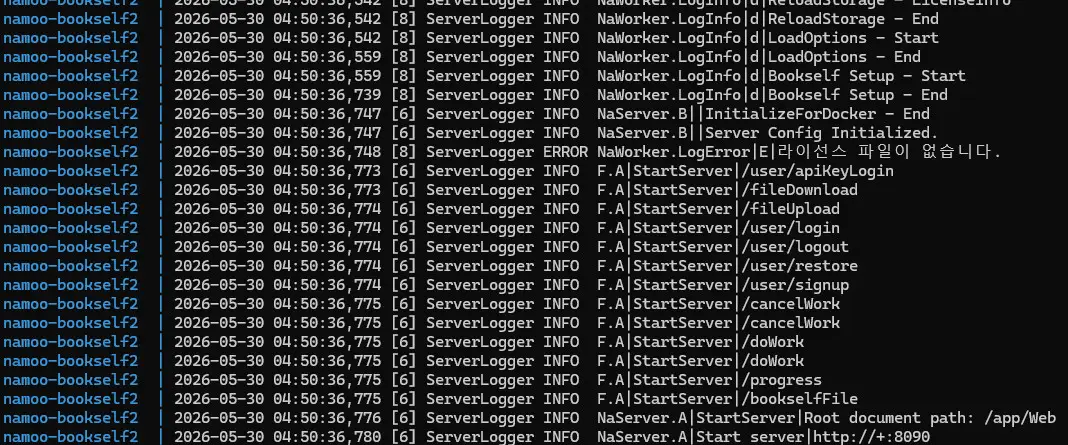
9. Verify web UI
Open http://<docker-host-IP>:<SERVER_HTTP_PORT>. If the login screen appears and login succeeds, the server is running.
Login ID and password are the APP_USER_ID value from the env file.
(Initial password is the same as APP_USER_ID)
After a successful login, you should see a screen like the one below.
