Edit Chapter
This feature edits chapter information.
Click the Edit icon in the chapter list to open the Edit Chapter screen.

Basic behavior is the same as the Edit Series screen.
- Series: You can change the series this chapter belongs to.
- Book: You can change the book this chapter belongs to. If no
book nameis registered, the field appears blank.
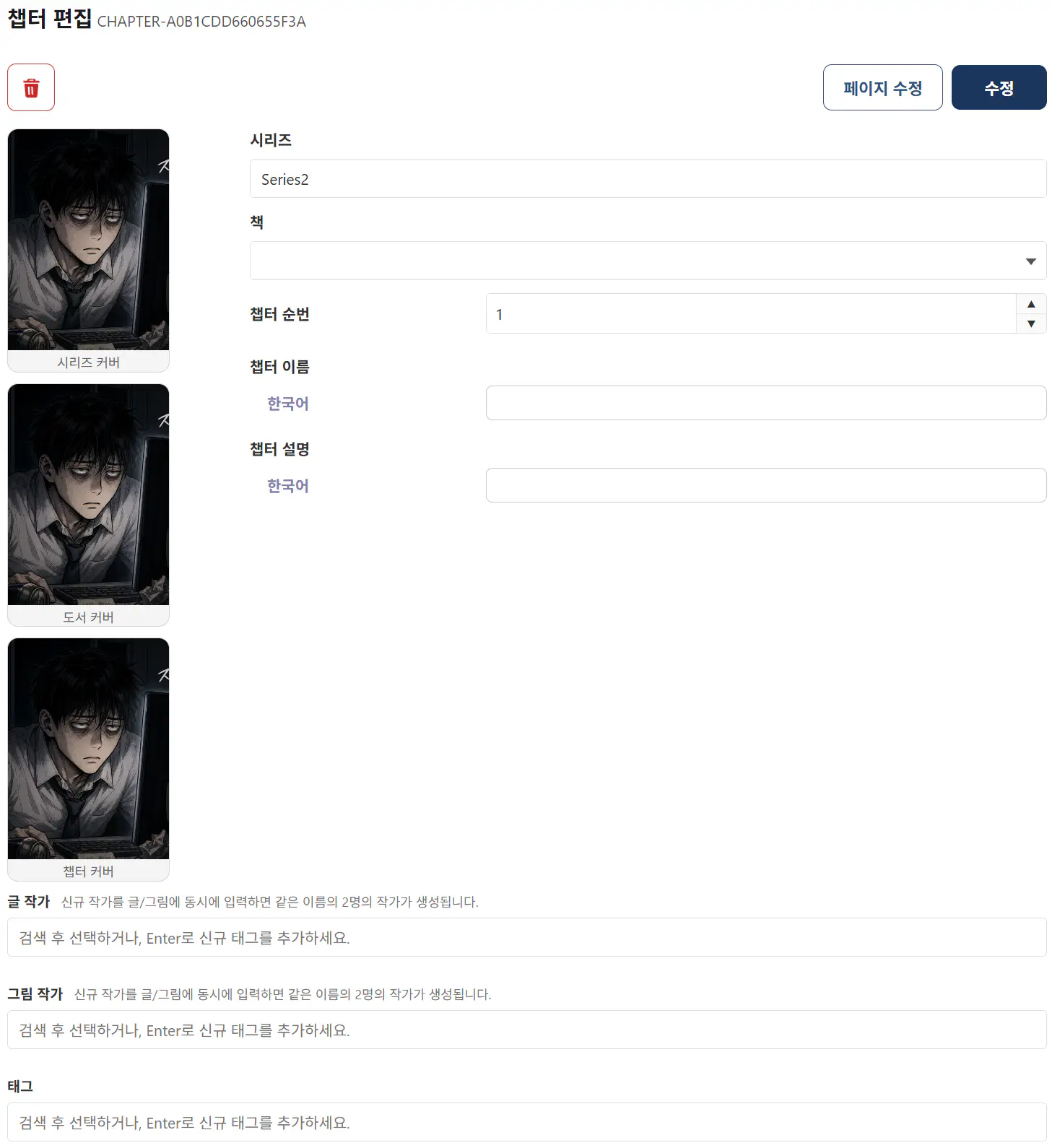
Edit Pages
Click the Edit Pages button to open a screen where you can edit page information for that chapter.
On that screen you can delete pages, change order, and move chapters.
After reordering, you must click Save for the order to be saved.

- Change chapter
Select the pages you want to change (click, or Shift + click for multi-select), then clickEdit Chapterto change which chapter those pages belong to.
You can move them to an existing chapter or create a new chapter to split them out.